
Chrome Developer Tools (DevTools) is a built-in tool in Google Chrome that helps developers:
- Find errors
- Debug code
- Test design
- Check APIs
- Improve performance
What is Chrome Developer Tools?
Chrome DevTools is a set of tools inside the browser that lets you see what is happening behind a website.
With DevTools, you can:
- See HTML & CSS
- Debug JavaScript
- View errors
- Check API responses
- Test mobile view
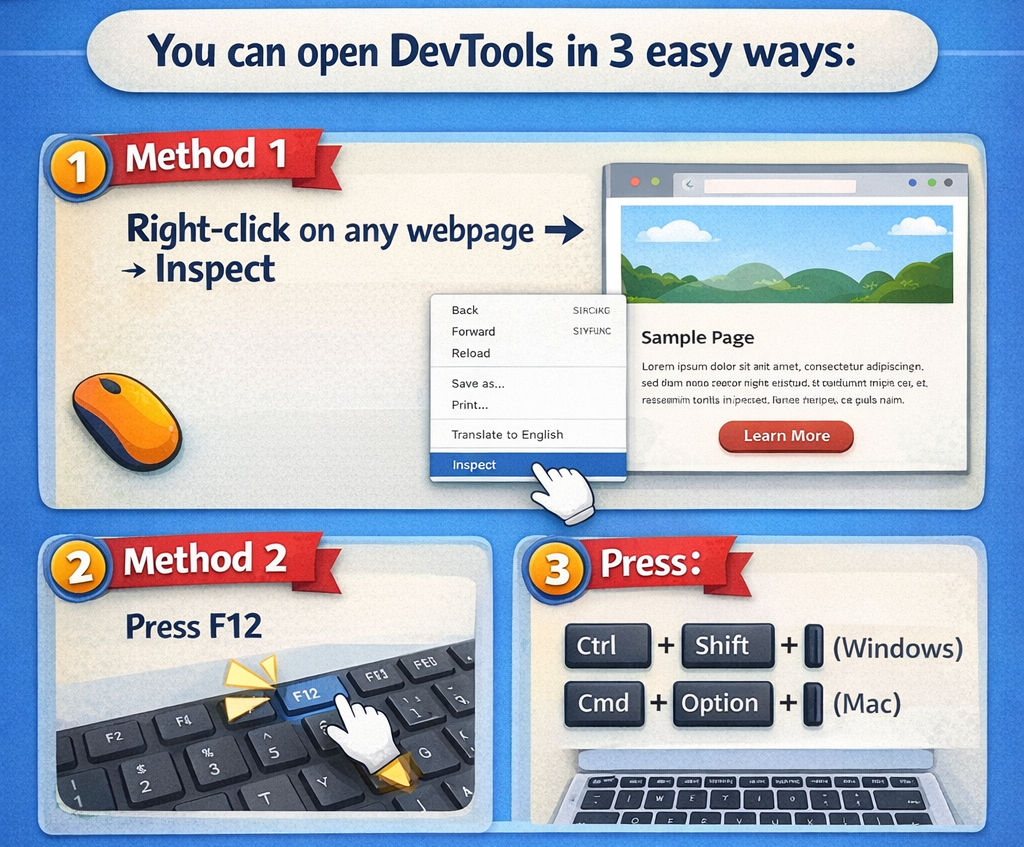
How to Open Chrome DevTools
Elements Tab – Inspect HTML & CSS
What is Elements Tab?
The Elements tab shows the HTML structure and CSS styles of the page.
Why Developers Use It
- Check layout issues
- Change colors, padding, margin
- Debug UI problems
Example Use Case
You want to:
- Change button color
- Check spacing issue
- See which CSS is applied
You can edit CSS live (only for testing).
Console Tab – Find Errors & Logs
What is Console?
The Console tab shows:
- JavaScript errors
- Warnings
console.log()outputs
Common Beginner Errors
- Undefined variable
- API error
- Function not found
Network Tab – API & Data Checking
What is Network Tab?
Network tab shows:
- API calls
- Request & response data
- Status codes (200, 404, 500)
When to Use
- API not returning data
- Page loading slowly
- Backend issue checking
How to Use
- Open Network tab
- Refresh the page
- Click on any request
- Check Response & Status
Application Tab – Storage & Tokens
What You Can Check
- Local Storage
- Session Storage
- Cookies
- Tokens (JWT)
Example Use
- Check login token
- Clear storage
- Debug auth issues
This is mostly used in:
- Login systems
- Dashboards
- Admin panels
Sources Tab – Debug JavaScript Code
What is Sources Tab?
Sources tab allows you to:
- See JS files
- Add breakpoints
- Pause code execution
Beginner Use
- Understand flow of code
- Debug logic step-by-step
Device Toolbar – Mobile Responsive Testing
What is Device Mode?
It lets you test your website on:
- Mobile
- Tablet
- Different screen sizes
How to Open
Click the mobile icon in DevTools.
You can test:
- Responsive design
- Mobile UI issues
- Font & layout problems
Common Problems Solved Using DevTools
- Page not loading
- Button click not working
- API not responding
- CSS design broken
- Mobile view issues
90% frontend bugs are solved using DevTools.