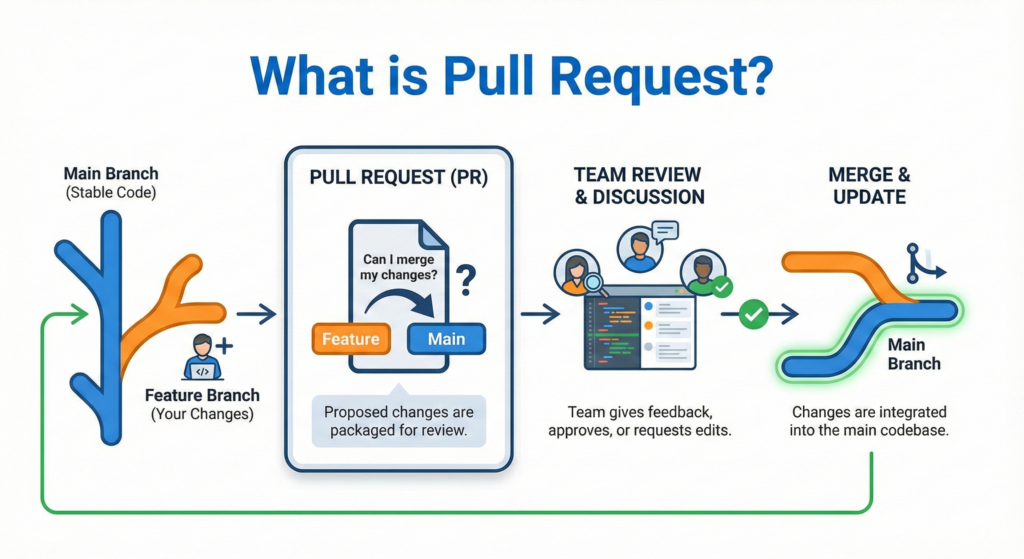

Welcome to the world of software development! If you are a fresh intern or a new developer, you keep hearning the word “GitHub” in every meeting. “Did you push to GitHub?” “Is that repo on GitHub?”
Don’t worry. This guide is your friendly handbook. We are going to strip away the complex jargon and explain exactly what GitHub is, why it is the industry standard, and the actual commands you need to type to use it.
What is Git and what is GitHub?
This is the most common point of confusion for beginners.
Git and GitHub are same thing? And the answer is NO.
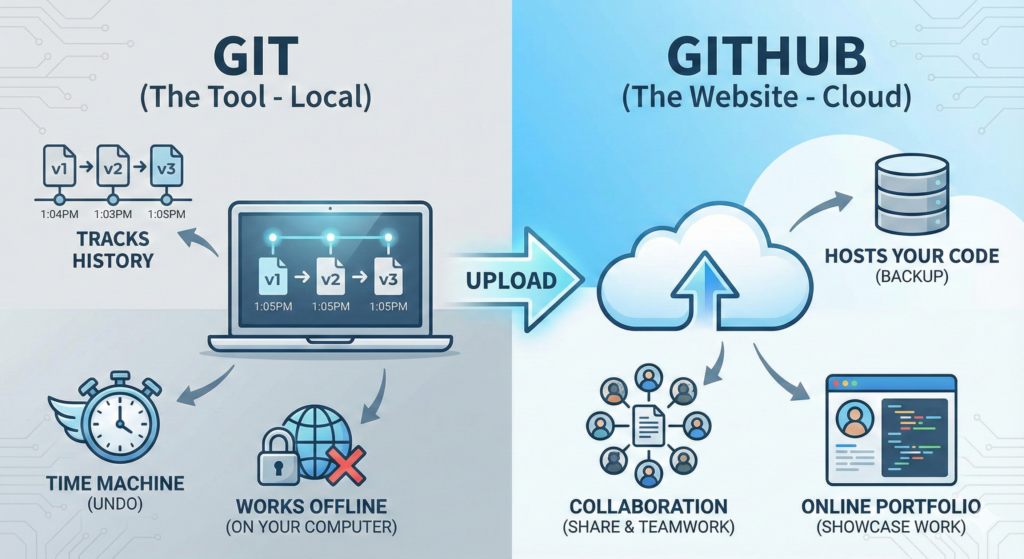
1. What is Git? (The Tool)
Git is software that you install on your local computer.
- Tracks History: Records every change made to your code over time.
- Time Machine: Allows you to “undo” mistakes and revert to previous versions.
- Works Offline: Lives entirely on your laptop; no internet required.
2. What is GitHub? (The Website)
GitHub is a cloud service where you upload code saved with Git.
- Hosts Files: Stores code in the cloud for safekeeping (backup).
- Collaboration: Allows others to view, download, and contribute to your work.
- Portfolio: Serves as a profile to showcase your code to potential employers.
Why developers use GitHub?
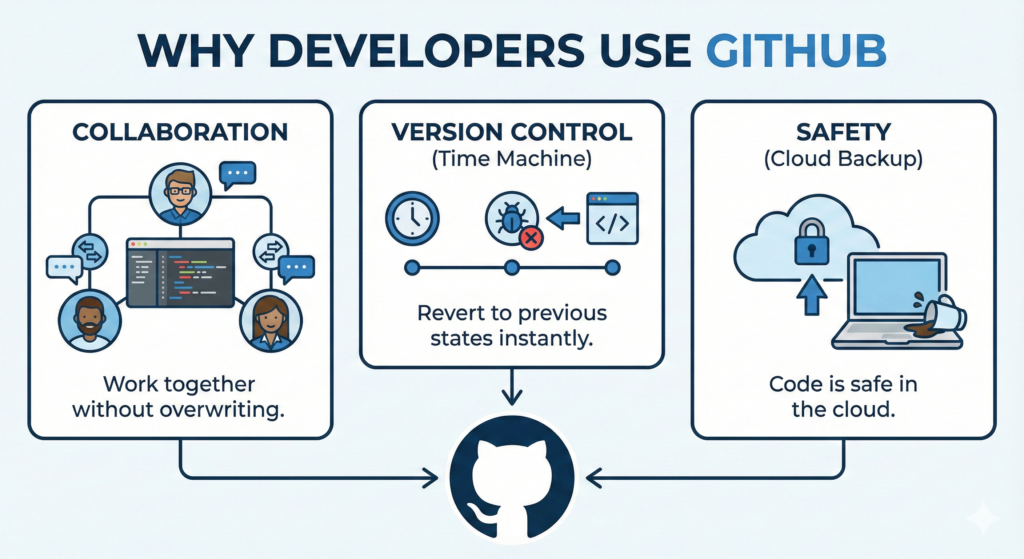
- Collaboration: Ten people can work on the exact same project at the same time without erasing each other’s work.
- Version Control (Time Machine): You can revert the project to a previous state instantly if new code causes errors.
- Safety: Your code is backed up in the cloud, keeping it safe even if your local hardware is lost or damaged.
What is a “Repository”?
You will hear developers say, “I sent the link to the repo.”
A Repository (or Repo) is a project folder that tracks its own history. Unlike a standard folder, it contains your files (code, images) plus a hidden record of every change ever made to them.
There are two main ways to get a repository on your computer:
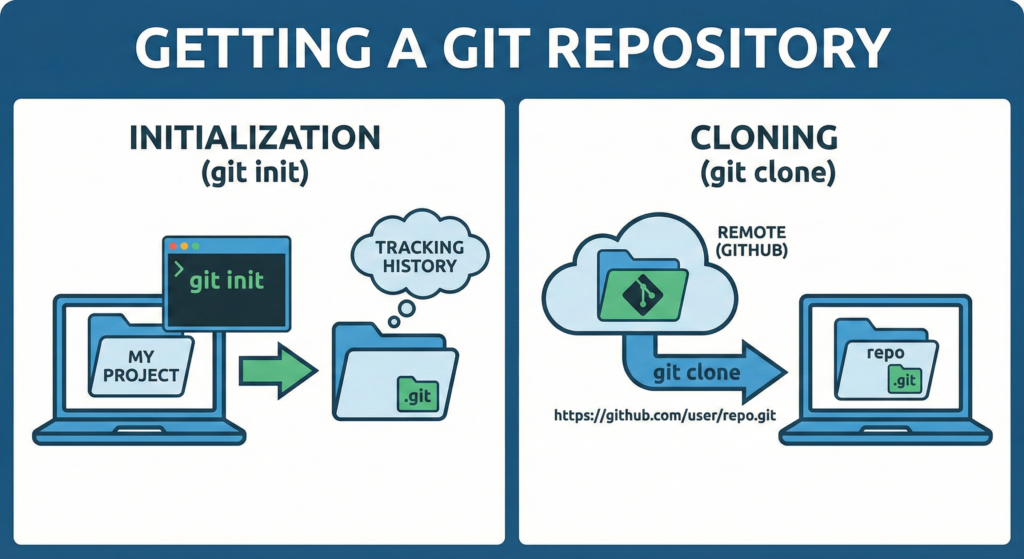
- Initialization: Tells Git to start tracking a project that already exists on your local computer.
The Command:git init - Cloning: Downloads a copy of an existing repository from GitHub to your computer.
The Command:git clone
Push, Pull, and Fetch (with simple examples)
When you work with GitHub, you are constantly moving data between your computer (Local) and GitHub (Remote). Here is exactly how that works, along with the commands you will type.
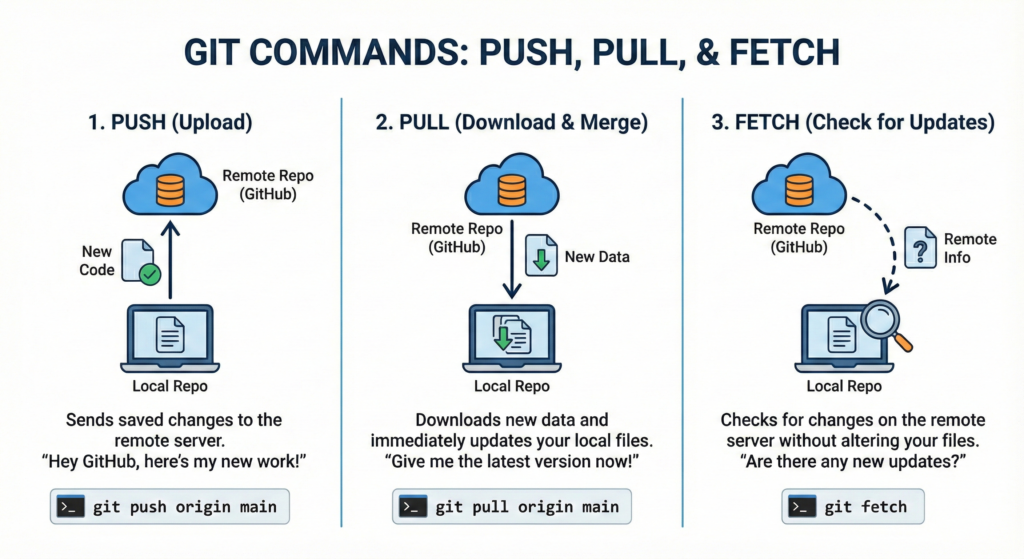
1. Push (Upload) Sends your saved changes from your laptop up to GitHub.
- Command:
git push origin main
2. Pull (Download & Update) Downloads new data from GitHub and immediately updates your local files.
- Command:
git pull origin main
3. Fetch (Check for Updates) Checks GitHub for changes but does not alter your current files. It lets you see what is new without interrupting your current work.
- Command:
git fetch
What is a “Branch”? (And Why You Need It)
Imagine wanting to write a crazy alternate ending to an essay without losing your original work. You would make a photocopy to experiment on. In Git, that photocopy is called a Branch.
- The Main Branch (
main): This is the “Gold Standard.” It is the perfect, working version of the code. You never mess with this directly. - The Feature Branch: When you have a new task (like “Fix button color”), you create a new branch. You can break everything here safely, and it won’t hurt the Main code.
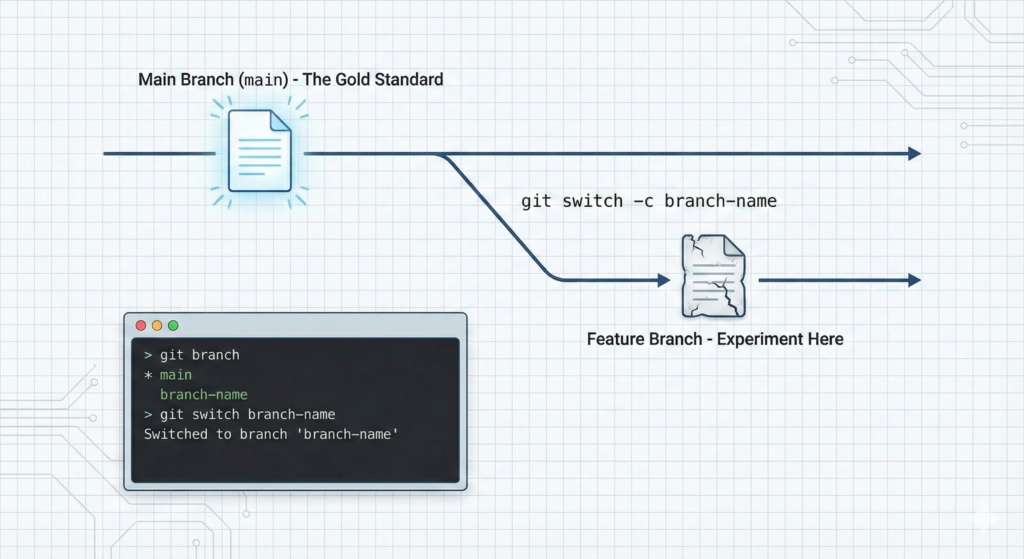
- The command to create and switch to a new branch:
git switch -c branch-name - The command to only create a new branch (without switching to it) is:
git branch branch-name - The command to switch to any branch is:
git switch branch-name - The command to see all branches:
git branch
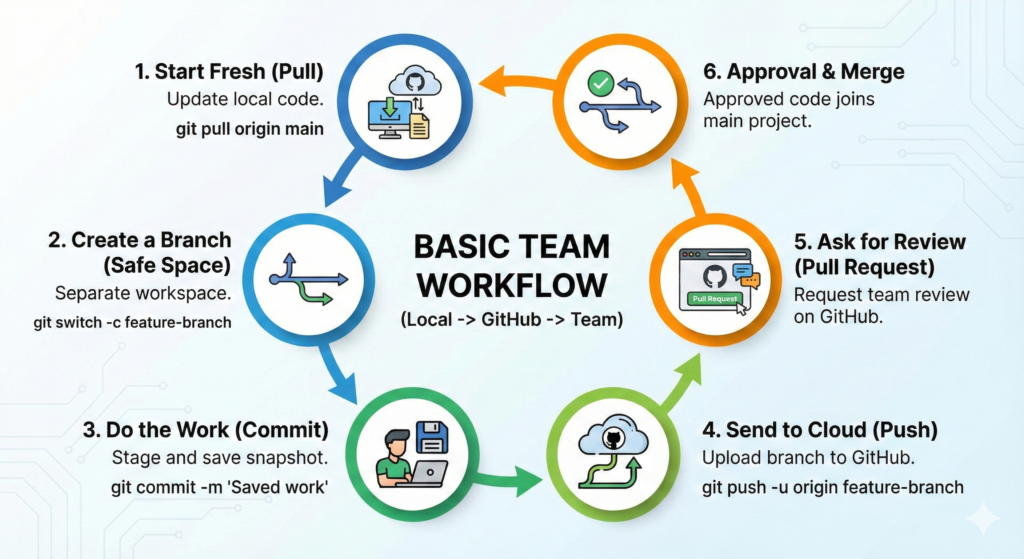
The Basic Team Workflow
Imagine you are working on a team magazine. You don’t write directly on the printed master copy. You make a photocopy, write your article, and then submit it to the editor for approval. GitHub works the exact same way.